
Editor Explained
Learn the basics of Vitryne's editor: the bar, the panels, and how to move around.
The editor shows your garment twice: as flat pieces of fabric on the left (the 2D pattern) and on a body on the right (the 3D drape). Change one and the other follows.
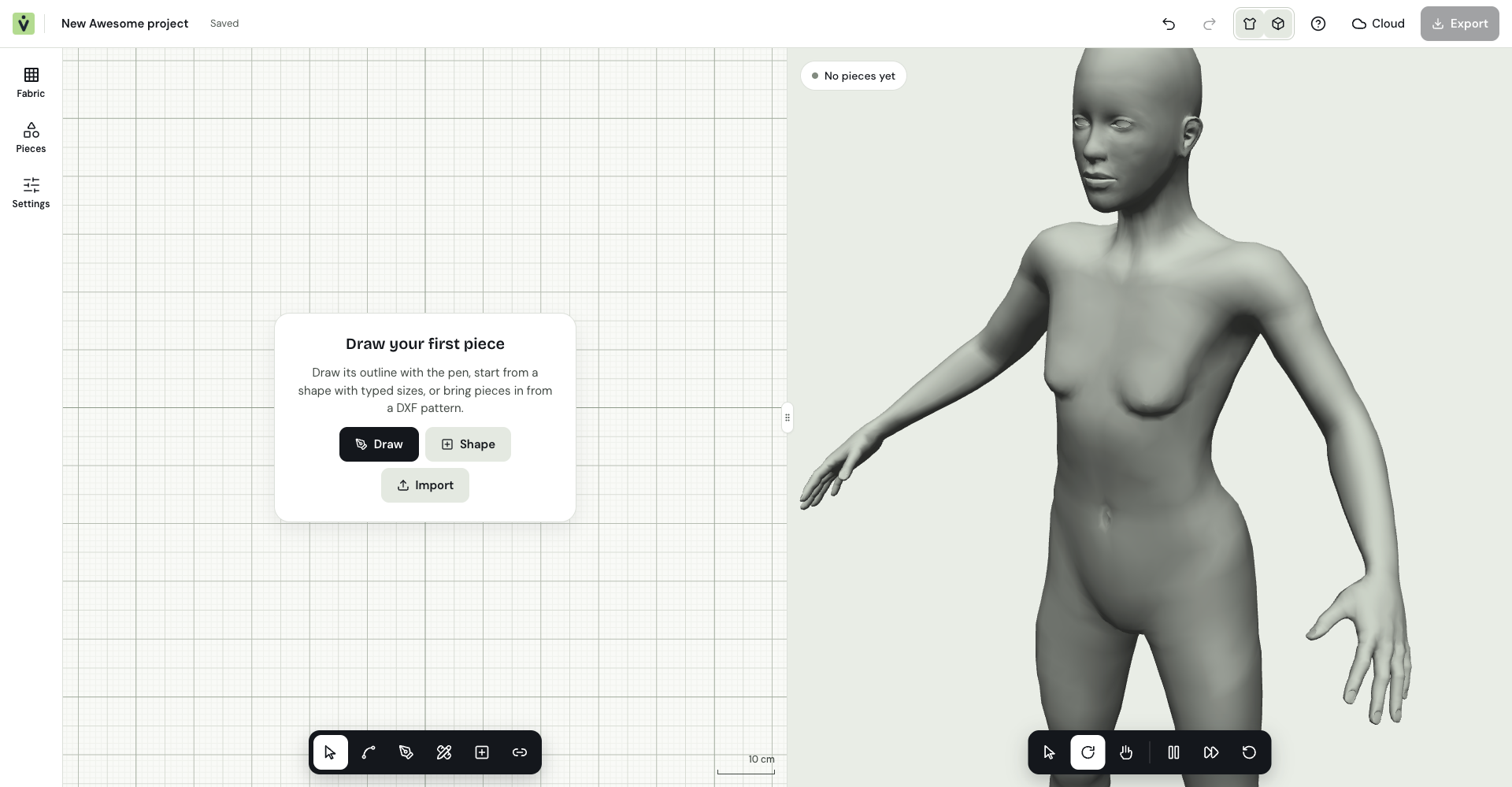
The screen has five parts:
- The top bar, across the top.
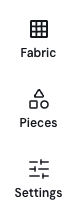
- The panel bar, down the left side: Fabric, Pieces and Settings.
- The 2D pattern, with its tool bar at the bottom.
- The 3D drape, with its own tool bar at the bottom.
- The divider between the two views.
The top bar
On the left:
- The logo takes you back to the start screen, where you can open another project.
- The project name. Click it to rename the project. Next to it, the save state: Saved once your last change is kept. Your work saves by itself as you go; there’s no Save button to remember.
On the right, from left to right:

- Undo and Redo (Ctrl+Z and Ctrl+Shift+Z, or ⌘Z and ⌘⇧Z on a Mac). Hover Undo to see what it will take back.
- Show 2D pattern and Show 3D drape, the two buttons side by side. Hide one view to give the other the whole screen.
- Help (the question mark): send feedback, report a bug, or read the source code.
- Sign in (your email once you are signed in): your account. Without one you can keep a single draft; a free account keeps as many projects as you like.
- Share opens one panel: the link (who can open the project, Copy link) and the downloads (a 3D model or the project file). See Exports.
The panel bar
The three buttons on the left each open a panel beside the pattern. Click a button again to close its panel.
| Panel | What it holds |
|---|---|
| Fabric | The fabric the garment is made of: denim, jersey, wool… See Your first Fabric. |
| Pieces | The selected piece: its name, where it starts on the body, its fabric, and the seams. |
| Settings | The project’s name and the drape’s Detail: more detail drapes finer folds, but slower. |
The 2D pattern
The flat view of your pieces, on a grid of centimetres. The scale bar in the bottom right shows how long 10 cm is at the current zoom.
A new project starts empty, with a card offering three ways to begin: Draw a piece with the pen, start from a Shape with typed sizes, or Import pieces from a DXF pattern (see Imports).
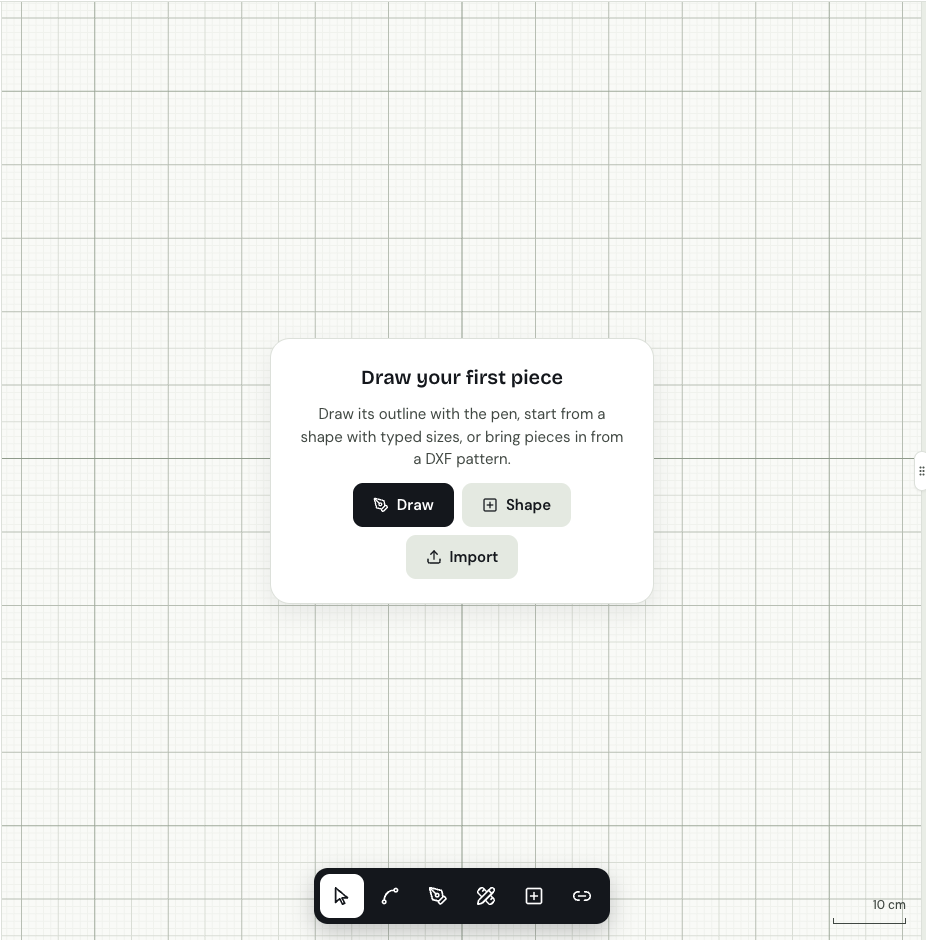
The tool bar at the bottom, from left to right:
| Tool | What it does |
|---|---|
| Select | Click a piece to select it, drag it to move it. Shift-click adds more. |
| Edit points | Move a piece’s corners, change an edge’s length, curve an edge. |
| Draw a piece | The pen: click corner after corner to draw an outline. |
| Lines, notches, folds and grain | The marks a pattern carries. |
| Add a shape | A ready shape, such as a rectangle, sized as you drag. |
| Sew two edges | Click an edge of one piece, then the edge it joins. |
Your first Pattern walks through each of them.
Moving around in 2D
- Zoom: scroll, or drag two fingers up and down (or pinch) on a trackpad. It zooms around the pointer.
- Pan: hold Ctrl (⌘ on a Mac) and drag.
- With Select, dragging on empty space draws a box that selects every piece it touches.
- Delete (or Backspace) removes the selected pieces.
The 3D drape
Your pieces on the body, falling and settling like real fabric. The label in the top left says what the drape is doing: No pieces yet, Live, Paused (click it to play or pause)…
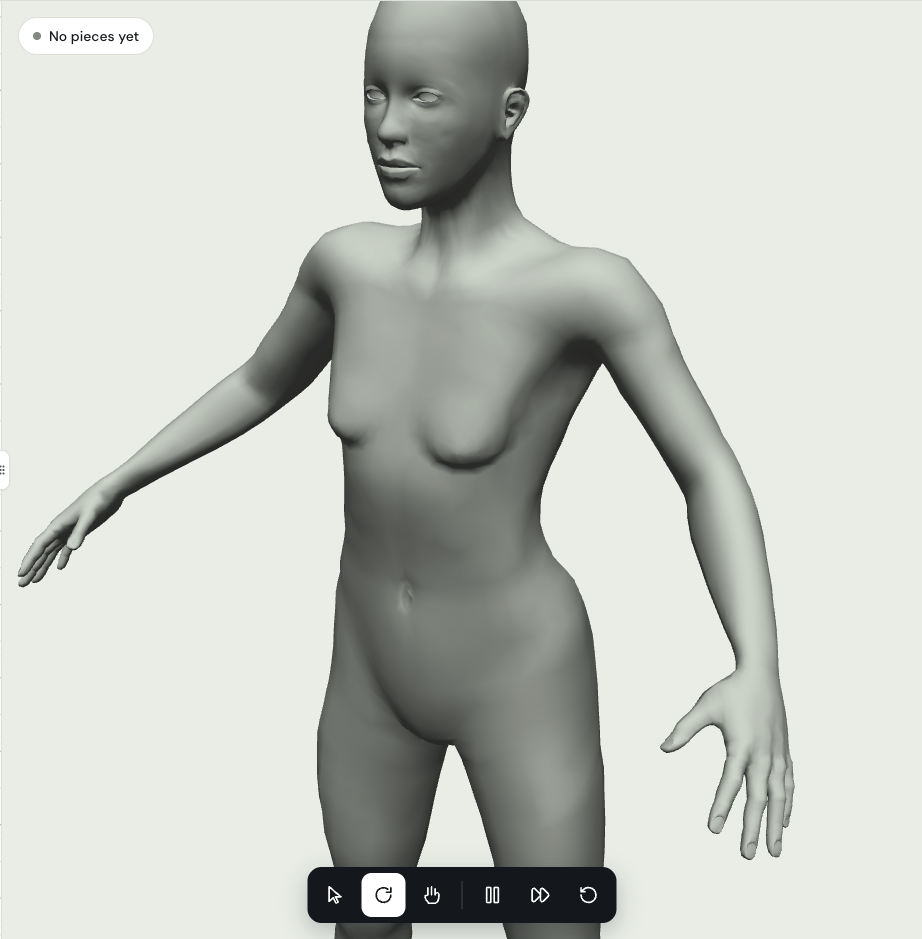
The tool bar at the bottom has two groups. The first is what a click or a drag does in the view:
- Select: click a piece to select it; handles let you move it up, down and around the body.
- Pinch fabric: grab the cloth and pull it, to check how it moves.
The second controls the drape itself:
| Button | Key | What it does |
|---|---|---|
| Play / Pause | Space | Stops the fabric where it is, or lets it fall on. |
| Fast drape | F | Gets to the result sooner. |
| Drape again from the start | R | Drops the pieces again from where they start. |
The drape plays by itself after every change you make, in 2D or 3D.
Moving around in 3D
- Zoom: scroll, or drag two fingers up and down (or pinch) on a trackpad.
- Turn: hold ⌘ (Ctrl) and drag. Dragging empty space turns the view too.
- Slide: hold ⌥ (Alt) and drag to move the view up, down and sideways.
The divider
The thin bar between the two views sets how much room each one gets:
- Drag it to resize the views.
- Click it to step between a few ready splits.
- Double-click it to split the screen in half.
Keyboard shortcuts
| Keys | What they do |
|---|---|
| Ctrl+Z / ⌘Z | Undo |
| Ctrl+Shift+Z / ⌘⇧Z, or Ctrl+Y | Redo |
| Delete or Backspace | Remove the selected pieces |
| Space | Play or pause the drape |
| F | Fast drape on or off |
| R | Drape again from the start |
| Ctrl or ⌘, held, and drag | Pan the 2D pattern |
Next
- Your first Pattern: draw a skirt, sew it and watch it drape.
- Your first Fabric: choose what it’s made of.